On this page
Why SpeedVitals is the one I reach for on a global store
Most speed tools test your store from a single location and hand you a single result. SpeedVitals does something the others make hard, which is test the same page from different places around the world and show you how the result changes with distance.
That one difference makes it the tool I reach for when a store sells to more than one region. A page that is quick from its home city can be painfully slow from the other side of the world, and that gap is invisible until you measure it.
This article walks through what SpeedVitals measures, why its multi location testing matters for a Magento store, and how to turn what it shows you into a fix. I am running it against my own site, jasonschuman.com, so every screenshot here is a real result.

What SpeedVitals is
SpeedVitals is a web performance tool that loads your page on a real browser and reports the same family of metrics you see elsewhere, including the Core Web Vitals and a Lighthouse based grade. In that sense it covers the same ground as PageSpeed Insights and GTmetrix.
Where it goes its own way is in how it presents the geography of speed. It leans into location, device, and the visual side of a load, so you are looking at where and how a page is slow, not only whether it is.
So think of SpeedVitals as a speed tool built around the question of distance. The metrics are familiar, and the angle it views them from is what makes it worth adding to your rotation.
Testing from different locations is the standout feature
The feature that sets SpeedVitals apart is how easily it lets you test from different locations and compare them. Instead of guessing how your store feels in another country, you run the page from each place that matters and read the results against each other.
This matters because the largest single factor in how fast your server responds from a given place is the distance the request has to travel. A store hosted in one region will always be slower to reach from far away unless something is closing that gap for you.

Where it fits next to the other tools
SpeedVitals overlaps with the tools I have written about before, and I use it for the part they are weakest at. PageSpeed Insights is my first read for real user field data, covered in how to read PageSpeed Insights for a Magento store.
GTmetrix is my shareable report, covered in how to use GTmetrix on a Magento store, and WebPageTest is my deep debugger, covered in how to use WebPageTest on a Magento store.
SpeedVitals is the one I add when the question is geographic, when I need to know how far your speed falls off as a customer gets farther from your server.
Free versus paid, and what the free tests give you
SpeedVitals is free to start, and the free tier lets you run tests and see the full report, from whichever location you choose, up to a daily limit. For learning the tool and auditing a store by hand, that limit is rarely a problem.
The paid plans raise the number of tests, add scheduled monitoring that re runs on its own, and open up an API for wiring tests into your own tools. They are about volume and automation rather than showing you anything the free tests hide.
Start free, learn to read the report, and reach for a paid plan only when you want SpeedVitals watching the store on a schedule instead of when you remember to run it.
Running your first test
Enter your URL, then choose the device and the location before you run. The device toggle between desktop and a mobile profile changes the result meaningfully, and the location decides which customers you are measuring.
Pick a location that matches where your customers actually are, then run the page again from each other region that matters. If you sell across the United States, test from a couple of points across it, and if you sell internationally, cover the regions that matter so you can see the full spread.
Test a page that earns money, not only the homepage. A product page and the checkout carry different weight, and the checkout is where a slow response from a distant region quietly costs you the sale.

Before you run, choose the device and the location. The location decides which of your customers the test is actually measuring.
Desktop and mobile are different tests
SpeedVitals lets you run the test as a desktop browser or as a mobile device, and the two are not the same measurement with a different screen size. The mobile profile simulates a slower processor and a throttled network, which is a harder environment and a more honest one.
This matters because most Magento storefront traffic is on phones, so the mobile result is the one that reflects most of your customers. A store that looks quick on desktop can be struggling on the visit most people actually make.
Run both, but weight the mobile result more heavily. When the desktop looks fine and the mobile does not, believe the mobile, because that is where your revenue is.
Reading the grade and the metrics
SpeedVitals opens on a result that shows a grade or score and the headline metrics for the location you are looking at. Read it the same way you would any of these tools, as a temperature first and a to do list second.
When you have run several locations, the real reading is the comparison between them. A grade that is strong nearby and weak far away is not a page problem, it is a distance problem, and the fix lives in your hosting and delivery rather than your theme.
So take the best and the worst location and hold them next to each other. The size of the gap between them is one of the most useful numbers SpeedVitals gives you.
One run is a moment, several are a pattern
A single test from a single location is one sample, and one sample can catch a lucky or unlucky moment. On a Magento store that swings between a warm cache and a cold one, that variance is real and worth accounting for.
Run each location a couple of times and look at the pattern rather than the single number. If the results cluster tightly you can trust them, and if they scatter, something is inconsistent and worth a closer look.
This is the same discipline I use with every speed tool. One reading is a story you tell yourself, and a handful of readings is data you can act on.
The Core Web Vitals it reports
SpeedVitals reports the Core Web Vitals, the same metrics that map most directly to what a customer feels. Largest Contentful Paint is when the main content appears, Total Blocking Time or Interaction to Next Paint covers how responsive the page is, and Cumulative Layout Shift is how much it jumps around while loading.
The useful twist here is watching those vitals change across locations. Largest Contentful Paint in particular tends to stretch with distance, because a farther request waits longer for the server before anything can even begin to render.
Treat these as lab measurements you can reproduce, and pair them with the real user field data from PageSpeed Insights to confirm that your customers in that region actually feel the slowdown.
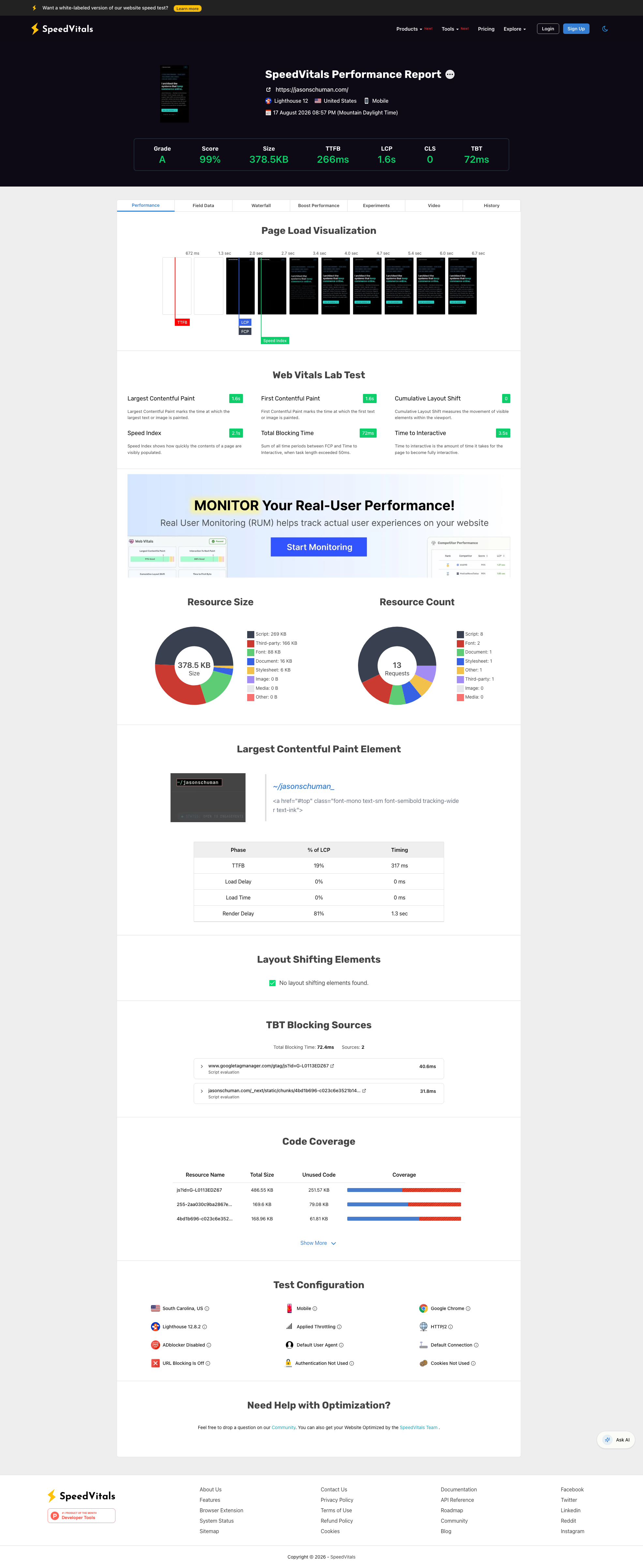
A single location report: the grade and score row across the top, the load visualization underneath, and the Web Vitals lab test below that. Run the same page from a second location and read the two side by side, because the gap between them is the story SpeedVitals tells best.
The field data still has the final say
Everything SpeedVitals shows you is a lab measurement, a controlled test rather than a record of your real customers. That makes it excellent for reproducing and diagnosing a problem, and it means the last word belongs elsewhere.
Confirm what you find against the real user field data in PageSpeed Insights, which reports what actual visitors experienced. If SpeedVitals shows a region as slow and the field data agrees, you have a real problem worth fixing. If they disagree, the lab test may be exaggerating a problem your customers do not actually feel.
Use the lab tool to find and reproduce, and use the field data to confirm it matters. The two together keep you from chasing a number that no customer actually feels.
The layout shift visualization
SpeedVitals is good at showing layout shift, not just scoring it. It can highlight the elements that moved during load, which turns an abstract Cumulative Layout Shift number into a picture of exactly what jumped on the page.
This is the fastest way to fix a shift problem, because you stop guessing and start looking. On a Magento store the usual culprits are product images without set dimensions, banners that push content down when they arrive, and fonts that reflow the text as they swap in.
Seeing the shift makes it obvious. An element you can point to is far easier to fix than a score you are trying to reason backward from.
The waterfall and the resource breakdown
SpeedVitals also gives you a waterfall and a breakdown of what the page loaded, by type and by size. It is the same idea as the waterfalls in the other tools, and it is where you go once a score tells you there is a problem but not where it is.
Read the first bar as your server response, the long bars as slow individual files, and the cluster of images as the place a Magento store usually carries more weight than it needs to. The resource breakdown then tells you how many bytes each type is costing you.
If the waterfall is where you end up spending your time, that is a sign you want the deeper tool, and the WebPageTest guide I linked earlier goes further into reading one.

The waterfall and resource breakdown. Read the first bar as your server response and the image cluster as the weight a Magento store usually carries more of than it needs.
What multi location testing reveals about your CDN
The multi location results are the clearest test I know of for whether your content delivery network is actually doing its job. A CDN is supposed to serve your static files from a location near each customer, so the distance to those files stays small no matter where the visitor is.
When you test from several locations and the static content stays fast everywhere while only the initial server response grows with distance, your CDN is working. When everything slows down far from home, either you have no CDN in front of the store or it is not configured to cover those regions.
Monitoring your store over time
On the paid plans, SpeedVitals can run your tests on a schedule and alert you when a metric slips, which turns it from something you remember to check into something that watches the store for you. The value is catching a regression close to the change that caused it.
For a store that serves several regions, scheduled multi location monitoring is genuinely useful, because a delivery problem in one region can appear without anything changing in your code. A monitor catches that where a one off manual test from your own city never would.
You can get part of this discipline for free by testing on a fixed schedule by hand, but if global speed matters to your revenue, paid monitoring earns its place.
Turning what you found into Magento fixes
Every SpeedVitals finding lands back on a place you can act on, and the mapping splits cleanly in two. A slow result everywhere points at the usual page level work, which means the theme, the JavaScript, the images, and the server, the same offenders every tool surfaces.
A slow result only far from home points somewhere different. That is your hosting location and your content delivery network, and the fix is closing the distance with a CDN and sensible caching rather than trimming a script.
Server response time sits underneath both, and on Magento that is your full page cache, Varnish, Redis, and indexing. A faster server helps every location at once, and a CDN helps the far ones catch up to the near ones.
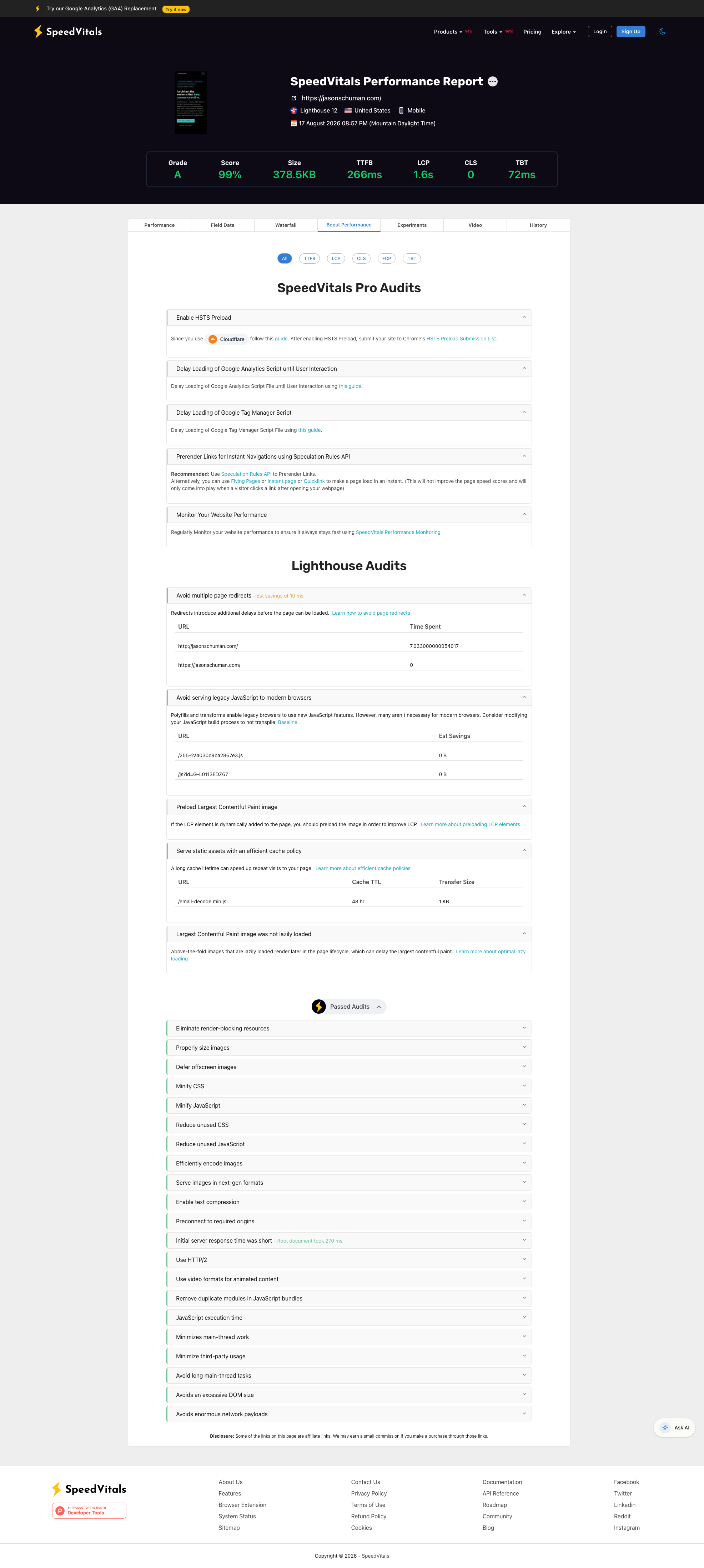
The Boost Performance tab turns the findings into a grouped checklist, and each item points at a specific place to work inside Magento.
Building it into a routine
SpeedVitals earns its place when you use it on a rhythm rather than in a panic. Once a month, and again before and after any significant release, is enough to catch problems while they are still small.
Test the same pages from the same set of locations each time, so the comparison stays honest. Read the near result for the page level story and the near to far gap for the delivery story, and write both down so you have a history.
A store that was fast everywhere and is now slow in one region tells you a delivery problem appeared, and a store that got slower everywhere tells you the page got heavier. The routine is what lets you tell those two apart.
Why global speed is a revenue question
I keep SpeedVitals in the rotation because it answers a question the other tools mostly skip, which is whether your customers far from your server are having the same experience as the ones nearby. If a whole region is slow, that region converts worse, and you would never see it from a single local test.
The mistake is assuming that because your store feels fast to you, it feels fast to everyone. Your own test runs from close to your server, which is the best case, not the average one.
Test from where your customers actually are, read the gap between your near and far results, and close it with delivery rather than guesswork. Do that on your product and checkout pages and SpeedVitals turns global speed from a blind spot into a number you manage.